Showing posts with label Windows 8 Use Tips WITH Staps. Show all posts

Computer Tips--- Automatically Logout of Gmail or Google Account

I use a lot of Google products like Gmail, YouTube, Google Docs, Google Calendar, etc, etc, and so does everyone in my family. The one problem with this situation is that if you don’t log off your Gmail or Google account, then the next person that comes around can access your entire Google life!

So you would think Google would have developed an option to automatically log you out after a certain amount of time, but it doesn’t exist! There’s one major reason for that too: Google doesn’t ever want you to log out of your account because it can’t track everything you do. If you’re logged in, they gather information about how you use all the Google services and use that information for everything from advertising to how your results are orders in Google Search.

Personally, I don’t really care too much about that aspect. My main reason for automatically logging out of my Google account is just to make sure no one else can access my account after I leave that computer. I’ve seen it happen so many times in hotels and apartment complexes where I go to Gmail in the browser and it loads up someone else’s Gmail account! Lucky for them, I’m not a hacker or an evil person otherwise I could theoertically access lots of sensitive information about that person.

Unfortunately, there is no perfect solution to this problem. In this article, I’ll try to walk through the different things I do in order to make sure my account can’t be accessed by anyone else.

Method 1 – Logout of All Sessions

Let’s say you logged into your Gmail account at a friends house and forgot to logout before leaving. Now what? Technically, that person can just go to Gmail and see all your emails. Luckily, there is one feature 
in Gmail that helps with this type of problem. You can log into Gmail on another computer and then sign out all other sessions.


If you go to Gmail and scroll all the way to the bottom, you will see Last account activity: x minutes ago and a link called Details. If you click on that, it will open a new window showing when you account was accessed by type (browser, IMAP, SMTP, etc) and by IP address/location.


If you click the Sign out all other sessions button, only you will be able to access your Gmail account again. Anyone else will have to sign in again with a password. This is still a very manual process, but it’s useful if you logged in somewhere and can’t physically logout from that device.

Method 2 – Two-Step Verification

The only true “automatic” way to logout of your Google account is if you’re using two-factor authentication (called two-step verification by Google). With two factor authentication, you have to type in your password and you have to type in a six digit code generated every 30 seconds by an app on your phone.


When using two-step verification, if you don’t check the Remember verification for this computer for 30 days option, every time you try to log into your Google account, you will have to type the six digit code. Of course, this requires more setup and you also have a little more hassle of having to type in this code anytime you want to access you account. However, if you’re looking for a way to logout automatically, then you probably are the person that doesn’t mind retyping their credentials.

Also, if you have your password saved in the browser, it works really well because the password will automatically be filled by your browser, but no one can gain access until you type in the code. So instead of having to type in your password again and again, you just need to enter the code.

Method 3 – Plugins and Add-ons

There are a couple of add-ons that you can also try for Chrome and Firefox if you use those browsers. For example, in Chrome there is a plugin called Auto Logout Google Accounts. It adds a button to your toolbar that you can click to instantly logoff your Google account and close the current tab.

It’s not automatic in the sense that you still have to click a button to actually perform the log off! That’s kind of annoying. For Firefox, there is a user script that works in conjunction with Greasemonkey. You can download the script here. The Firefox script will actually put a countdown timer in your Gmail window.


I haven’t tried this one out myself, so I’m not sure if it is still working or not. It’s a couple of years old, so give it a shot and let us know in the comments.

LIke I said before, there really aren’t any great options for automatically logging out of your Google account. If you have found a better solution than the ones mentioned above, feel free to post a comment and let us know. Enjoy!

"Computer Tips--- Automatically Logout of Gmail or Google Account"

Reference : online-tech-tips.com

Windows 8 Tips--- Ultimate Windows 8 WiFi Troubleshooting Guide

If you’re running Windows 8 or recently upgraded, you might have run into some frustrating WiFi issues. Windows 8 is inherently a different beast than

previous versions of Windows and with it comes a new set of problems. I never encountered too many wireless problems in Windows 7, but have run into several with Windows 8.

In this article, we’ll go through a couple of the most common problems with WiFi connections in Windows 8 and how to troubleshoot them. Most of the problems occur with those computers that got upgraded from Windows XP or Windows 7 to Windows 8. Either the driver is out of date or the adapter gets disabled or something odd like that. Let’s get started.

Limited Connectivity Message
If you’re getting that annoying limited connectivity message in your task bar in Windows 8, it’s really hard to tell what the problem is. You basically just have

to try a couple of things and hope one works. The cause could be anything from the network adapter to the wireless router to a bad network cable. I’m only

going to mention a few of the major reasons here, but scroll down to the Other Troubleshooting Tips section if none of these fix your problem.

Method 1 – Troubleshooter
The first thing you can try is to run a couple of the network troubleshooters built into Windows 8. A lot of the time, it can solve your wireless or Internet

problem for you. To open the troubleshooter, open the search charm and type in troubleshooting. Then click on Troubleshooting, the first option.


Now you want to click on Network and Internet.


Finally, you will see the different troubleshooters available for fixing wireless and Internet problems. The ones you will want to run are Internet Connections and Network Adapter.


Method 2 – Reset TCP/IP in Windows 8
You might also get a message like this when running the troubleshooter:

WiFi does not have a valid ip configuration

In this case, you can reset the TCP/IP stack and Winsock and see if that works. To do this, again open the search charm and type in command prompt. On

the first listing, right-click and choose Run as Administrator.


At the command prompt, type in the following two commands, one at a time and make sure to press Enter after each one:

netsh winsock reset catalog
netsh int ip reset c:\resetlog.txt


Hopefully, your wireless connection is working at this point. If not, skip down to the bottom section which has more troubleshooting tips.

WiFi is Disabled or Greyed Out
in one odd case, I had a Surface tablet where the wireless was disabled and I could not even enable it. For some odd reason, the On/Off toggle switch for 

Wireless Devices was greyed out like below:


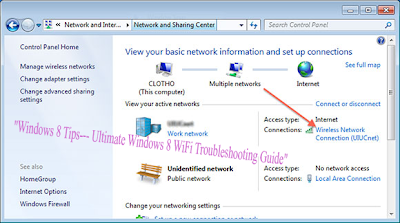
The first thing you can do is try to diagnose the connection. To do this, open Network and Sharing Center. You can simply right-click on the network icon in the task bar and choose it or you can open the search charm and type it in there.


Now find the wireless connection at the top and click on the blue link:


A new dialog will pop up and here you’ll see there is a Diagnose button. Go ahead and click on that and let Windows try to fix it for you.


The next thing you can try is to restart in Safe Mode, Network Enabled and try to turn on the Wireless there. For some reason on certain computers, the 

option is not greyed out in safe mode, so you might be able to enable it there and then restart in normally. Read my previous post on how to boot Windows 8 into safe mode.

The other thing you can try is to disable and then re-enable the wireless network adapter. Again, open Network and Sharing Center and then click on the 

Change adapter settings link at the left. You can see it in the second screenshot above this paragraph.


Right-click on the wireless network adapter (not the Ethernet one like shown above) and then click on Disable. Once it’s disabled, go ahead and right-click 

again and then choose Enable. Now try to go to Wireless in PC Settings again and see if you can enable WiFi.

If this doesn’t work, again drop down to the last section which has more WiFi troubleshooting tips.

WiFi Not Connecting from Sleep or Hibernation
If your Windows 8 machine is disconnecting from the wireless network whenever you return from sleep or hibernation or any other standby state, then your problem is probably with a power-saving option set on the network card. To fix this, you need to open the search charm and type in Power Options.

Here, click on the selected plan and then click on Change plan settings.


Then click on the Change advanced power settings link.


Now scroll down to Wireless Adapter Settings and make sure the Power Saving Mode is set to Maximum Performance.


Other Troubleshooting Tips
Check Network Card at Compatibility Center
You can check to see if your wireless network card is compatible with Windows 8 by visiting the Capability Center. Go ahead and type in the name of your wireless card and you should get a little report like this:


It’ll have a little blue logo if it is compatible or not. You can also check Windows RT in addition to just Windows 8. So this is a nice site to check out if you are having issues with your WiFi network, especially if it’s not showing up at all in Windows 8 or it’s got a yellow exclamation sign in Device Manager.

Check Network Adapter Settings
Open Network and Sharing Center, click on Change adapter settings and then right-click on then wireless network adapter and choose Properties.


Now scroll down in the list box until you see Internet Protocol Version 4 (TCP/IPv4) and then click on the Properties button.


Finally, make sure the Obtain an IP address automatically and Obtain DNS server address automatically radio buttons are selected.


Check Wireless Switch
On most laptops, there is a wireless switch or button that can be toggled from on to off. Make sure you have that button set to On or press FN + F8 to enable 

the wireless card. The switch can be anywhere (sides, front, back, etc), but there is usually an indicator light so you can tell when it’s on.

Uninstall in Device Manager
Another quick tip is to go to Device Manager, right-click on your wireless network card and choose Uninstall. Then reboot your computer and it was 

automatically be detected and reinstalled. If it’s still not working after trying this, then read the next tip, which is updating the driver.

Update BIOS & Drivers
As always, it’s a good idea to download and install the latest drivers for your network card. This is especially important if you’re running Windows 8. As for 

the BIOS, I’ve always been the one to suggest not updating the BIOS unless it’s really needed. However, if you upgraded a computer from Windows XP or Windows 7 to Windows 8 and you tried everything above and updated the driver, then updating the BIOS might be worth it. 99% of the time updating the BIOS is just fine, but there are occasions when it fails and then leaves you with a computer you can’t boot. Only try this as a last resort and make a backup of your computer first just in case.

Reset the Router
If you’re getting the Limited Connectivity message, then you can try resetting the router. You can either restart it by just unplugging it, waiting about a minute and then plugging it back in. If that doesn’t work and you’ve tried all the stuff above, go ahead and reset your router. This will reset it to the default settings and will wipe out any security or configuration you had done earlier, so be careful and be ready to do that all again. It’s a last resort measure, but it could fix your problem.

Read my previous post on how to reset your router.

Remove Anti-Virus or Internet Security Suites
If you have something like AVG Internet Security or Avast or similar software installed on your PC or tablet, then go ahead and uninstall that program and see if your Internet connection starts to work. Many times Internet Security software has been the culprit and you could be pulling your hair out trying to figure out what’s causing the issue, so it’s worth trying.

So that’s a lot of stuff to try and practically every sane thing you can try. If none of this worked, then you could possibly have a hardware problem with your wireless card. If you have questions, feel free to post a comment. Enjoy!


"Windows 8 Tips--- Ultimate Windows 8 WiFi Troubleshooting Guide"


Reference : online-tech-tips.com


Windows 8 Tips: You can Enable God Mode in Windows 8

Windows 7 users were delighted when they found out about a secret feature called God Mode. It basically lets you create a folder with a special name that then gives you access to just about all of the controls, options and settings for the OS.

Luckily, you can enable God Mode in Windows 8 too! This is actually really useful because in Windows 8, you have system settings in two different places: one set of settings for the Start Screen and a second set of settings for the Desktop environment. If you hate the Start Screen and don’t like the fact that you have to use the Charms bar to get to the Start Screen settings, you can use God Mode to access all of the settings via the familiar desktop environment.

To get started, just create a folder on the desktop and name it whatever you like. After that, right-click and it and choose Rename.

Now just add the following to the end of the folder name:

.{ED7BA470-8E54-465E-825C-99712043E01C}

As you can see, you need to include the . before the opening bracket. Here’s my mine looks like:

All Settings.{ED7BA470-8E54-465E-825C-99712043E01C}

Windows 8 Tips: You can Enable God Mode in Windows 8

If you’re not able to do this, you might have to show hidden files and show file extensions in Windows Explorer first. You can do that by going to the desktop, opening a Windows Explorer window and then clicking on the View tab. Now check the “File Name Extensions” and “Hidden Files” boxes.

Windows 8 Tips: You can Enable God Mode in Windows 8


When you press Enter, the icon on the folder changes into one that is exactly the same as the Control Panel.

Windows 8 Tips: You can Enable God Mode in Windows 8

However, if you click on the new GodMode icon, you’ll get a folder with a bunch of links to all kinds of settings on Windows 8. It’s nice because it even breaks it down by category like Action Center, Administrative Tools, Devices and Printers, Date and Time, Display, Folder Options, Troubleshooting, etc.


Windows 8 Tips: You can Enable God Mode in Windows 8

Now you can access every single setting and option in Windows 8 from one folder! So if you are having a hard time finding a particular setting or control panel item, just open this folder and do a search. It’s great because you can narrow down the huge list by typing in a few keywords.


Windows 8 Tips: You can Enable God Mode in Windows 8

Sweet! So that’s how you enable GodMode in Windows 8. You can also go ahead and pin the Gode Mode shortcut to your Start Screen for easier access. Just right-click on the icon on the desktop and choose Pin to Start.

Windows 8 Tips: You can Enable God Mode in Windows 8

Now you can access all of the settings available in God Mode via the Start Screen also.

Windows 8 Tips: You can Enable God Mode in Windows 8

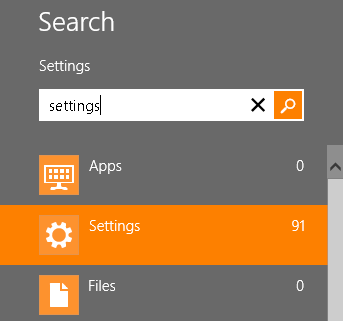
However, there is also another way to get access to a lot of settings in Windows 8. The new Start Screen has a built-in search option that lets you search all system settings. Go to the Start Screen and type in the word Settings.

Windows 8 Tips: You can Enable God Mode in Windows 8

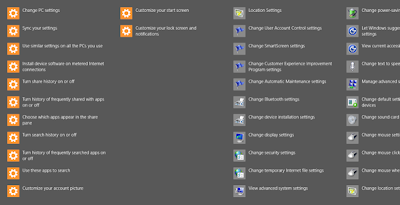
You get a pretty big list of 91 settings you can adjust. Just swipe with your finger or scroll with your mouse to access all of the settings.


Windows 8 Tips: You can Enable God Mode in Windows 8

Pretty cool! So those are two ways you can make it easier to find system settings on Windows 8: GodMode and via the search option on the Charms bar. Enjoy!


"Windows 8 Tips: You can Enable God Mode in Windows 8"


Reference : online-tech-tips.com


Windows 8 Tips: Use 5 Tasks That Should Have Been Simpler In Windows 8


I’ve been using Windows 8 for a while now and even though I like using it, there are still some really annoying aspects of the OS that I just don’t get. For instance, why is it so hard to do things that used to be so easy? Restart your computer? Print from a Windows app? The OS has been “re-imagined”, but I find some of the new ways to get simple things done frustrating. Here’s my gripe list for Windows 8.

Windows 8 Tips: Use 5 Tasks That Should Have Been Simpler In Windows 8


Shutting Down and Restarting Windows 8

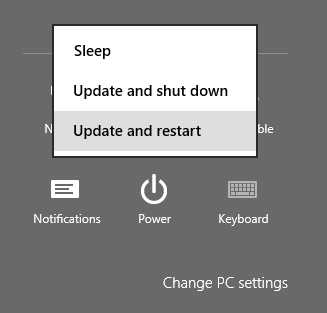
I don’t restart or shutdown my computer often, but it really should be easier than opening the Charms bar and having to click three times! I’m not really sure why Microsoft didn’t put a shut down and restart option on the Start Screen somewhere just click they have the Lock and Sign out options. Instead you have to open the Charms bar, click on Settings, then click on Power and then click on Restart or Shutdown.

Windows 8 Tips: Use 5 Tasks That Should Have Been Simpler In Windows 8

You can add the shutdown and restart options to the right-click menu or create shortcuts on the Start Screen, but at the end of the day, it should have been a simpler task to accomplish.


Printing from Windows Apps

This one really gets me too! It took me a while to figure out how to print from a Windows app. I tried my best not to search on Google because I wanted to figure it out myself. I assumed it would be easy enough since that is something that just about everyone under the sun does quite often.

Windows 8 Tips: Use 5 Tasks That Should Have Been Simpler In Windows 8

Again, you have to open the Charms bar and click on Devices. There you will see your list of printers. Not very intuitive if you ask me. Thankfully, you can still press CTRL + P to print while inside of Windows apps. If you’re trying to print a PDF using the built-in Reader app, that’s how you do it!


Closing Apps in Windows 8

Going from clicking the X in a normal desktop app to closing apps in Windows 8 is going from Earth to Mars. Basically, Microsoft’s perspective is that you can just leave Windows apps open all the time and switch back and forth between them. I personally don’t like that idea too much.

There are a couple of ways to close an app in Windows 8. The easiest way is to move your mouse up to the top center of the screen, click your left mouse button and then start dragging down. The app windows becomes smaller and then simply disappears once you reach the bottom of the screen. You’ll be brought back to the Start Screen once the apps closes.

Windows 8 Tips: Use 5 Tasks That Should Have Been Simpler In Windows 8

You can also read my previous post on using the hot corners on the left side of the screen to close running Windows 8 apps. However, that method still requires you to manually close each app. What if you have 20 apps open? Check out the last tip in my 5 tips for speeding up Windows 8 to see how you can close all running Windows apps at once.


Booting to Safe Mode

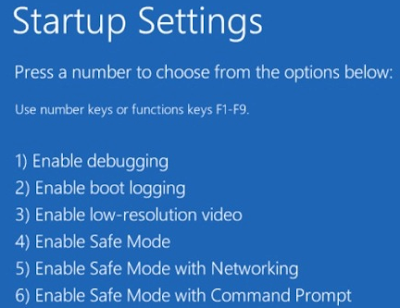
Gone are the days of pressing F8 to get your list of boot options. Now you have a multi-step process to get into Safe Mode in Windows 8. First, you have to boot into System Recovery Options. Once you are there, you then have to go through a bunch of prompts before you finally get the option to boot into Safe Mode.

Windows 8 Tips: Use 5 Tasks That Should Have Been Simpler In Windows 8

The new boot screens are a lot nicer looking than previous versions of Windows, but it makes the process a lot more complicated. Getting into Safe Mode used to be so easy, now it’s not!


Playing DVDs

Microsoft removed the ability of Windows 8 to play DVDs due to licensing costs, but if you have included something in Windows for that long, just removing it without any clear guidance is frustrating. 

Obviously, most consumers buying new Windows 8 PCs won’t be affected because the manufacturer will probably install some kind of DVD playing software.

However, if you are upgrading to Windows 8, even Windows 8 Pro, you still either have to download third-party software or purchase the Windows Media Center add-on pack. It’s not that expensive for the add-on pack and you can always download a program like VLC media player, but it is definitely confusing to novice users.

Over time, I’m sure everyone will get used to these new ways of doing things, but for right now, it’s something that makes me feel I have to do extra work. What do you think? Do you like Windows 8? Any tasks you feel take longer in Windows 8 than in previous versions? Let us know in the comments. Enjoy!


"Windows 8 Tips: Use 5 Tasks That Should Have Been Simpler In Windows 8"


Reference : online-tech-tips.com


Windows 8 Tips: check Your PC is Ready for Windows 8

Windows 8 was officially released yesterday and it’s now time to decide whether you want to upgrade or not. If you have decided to upgrade a Windows XP, Windows Vista or Windows 7 machine to Windows 8, you probably want to make sure your system can support Windows 8 before you buy the upgrade.

To check if your PC is compatible with Windows 8, you can download and run the Windows 8 Upgrade Assistant. The upgrade assistant will go ahead and scan your hardware, programs, and even any connected devices to make sure they will work with Windows 8. Windows 8 requires certain CPU features like PAE, NX, SSE2, etc, so it’s a good idea to use this tool if your computer is a bit on the old side.

The tool will also give you a compatibly report for your programs and let you know whether you need to uninstall the program or update the program before upgrading. Once you download it, install it and run it, the program will automatically start scanning your computer for apps and devices.

Windows 8 Tips: check Your PC is Ready for Windows 8

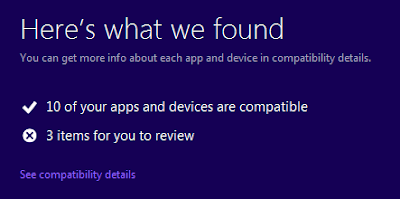
It will then tell you which apps are compatible and which apps you need to review.

Windows 8 Tips: check Your PC is Ready for Windows 8

There are some new features in Windows 8 like secure boot, snap, and fast startup. Upgrade assistant will notify you if any of those items are not supported by your system:

Windows 8 Tips: check Your PC is Ready for Windows 8

If you didn’t already know, Windows 8 does not include built-in software to play DVDs. If you want that feature, you’ll have to buy the Pro pack and get Windows Media Center. Note that if you already have Windows 8 Pro, you can get Windows Media Center Pack for free until January 31st, 2013, so get it fast!

Also, Microsoft Security Essentials is being replaced by Windows Defender in Windows 8. It’s basically the same thing, but for whatever reason they are including Windows Defender built into Windows 8. So if you have Security Essentials installed on Windows 7, you’ll have to remove it before upgrading.

You also get a list of compatible software and hardware that will work with Windows 8:

Windows 8 Tips: check Your PC is Ready for Windows 8

When you click Next, you’ll be asked what you would like to keep. This will determine which version of Windows 8 will work best for you.

Windows 8 Tips: check Your PC is Ready for Windows 8

Note that depending on what version of Windows you have, you can only upgrade to certain editions of Windows 8. For example, if you have Windows 7 Ultimate, you can only upgrade to Windows 8 Pro. If you have Windows 7 Pro, you can upgrade to Windows 8 Pro or Enterprise. If you have Windows 7 Enterprise, you can only upgrade to Windows 8 Enterprise. Check out the Wikipedia article for more details.

In my case, since I have Windows 7 Ultimate, any option I selected gave me the same result: Windows 8 Pro for $39.99.

Windows 8 Tips: check Your PC is Ready for Windows 8

That’s about all there is to the Windows 8 Upgrade Assistant. It’s mostly useful for figuring out which hardware and software will not work on Windows 8. It’s also useful if you have an older PC and you’re not sure if your CPU is going to be supported by Windows 8. Enjoy!


"Windows 8 Tips: check Your PC is Ready for Windows 8"

Reference : online-tech-tips.com


Windows Tips: Hosts File in Windows "What is" and How Can You Use It

The hosts file in Windows is like an address book for your computer. It is loaded into memory (cache) when Windows starts and associates host names, such as www.google.com with IP addresses, such as 74.125.224.72 for Google. 

The IP address is like the telephone number for that site. However, so we don’t have to remember a string of numbers for every site we want to visit, we enter easy-to-remember host names.

Because the computer uses IP addresses to find sites, it needs to translate the host name for a site into an IP address. If the IP address for a site is in your hosts file associated with a host name, your computer can use that to “call” the site when you enter the host name in your browser’s address bar. If not, your computer must contact a DNS (domain name server) computer on the Internet for the IP address before it can contact the site.

Initially, there are no host name/IP address associations in the hosts file. Examples of the format and layout of the IP addresses and host names are listed in the comments in the file.

Windows Tips: Hosts File in Windows "What is" and How Can You Use It

If you add host names and their associated IP addresses into the hosts file for sites you visit often, access to those sites becomes faster.Your computer doesn’t have to query DNS servers on the Internet to get the IP addresses for those sites. If there are any sites that don’t have a domain name, you can enter the site’s IP address in your hosts file with a custom domain name which can serve as a “shortcut” to the site.

So how can you use a HOSTS file in Windows? Well, websites can collect various types of information about you as you surf the web. The hosts file can help block sites from tracking you, as well as block ads, banners, third-party cookies, and other annoying parts of web pages.

Each computer has a host address of its own, known as the “localhost” address. The IP address for localhost is 127.0.0.1. This can be used to block sites serving ads or objectionable content by entering a site’s host name in the hosts file and associating it with the localhost IP address

That refers the host name to your own computer, which then thinks it found the site and displayed it already, even though that site was never actually contacted.

For example, DoubleClick is an ad server that, in some cases, will quietly try to open a separate connection on the current webpage and record your activity on that page as well as follow you to other sites you visit. Adding the following entry to your hosts file, prevents DoubleClick from ever serving you any ads or tracking your activity.

127.0.0.1 ad.doubleclick.net

NOTE: The entries in the hosts file allow you only to block entire sites. Therefore, if you are viewing a site, any ads that are served to you by that site, cannot be blocked with the hosts file without blocking the whole site.

Another advantage of blocking ads, banners, hit counters, and other annoying webpage elements is that it can also speed up your browsing experience. You don’t have to wait for all those webpage elements to load before viewing the page.

You can set up the hosts file yourself to block websites or you can download a hosts file that is already filled out with common sites you may want to block. The following image shows a ready-made hosts file created by the MVPS site.

Windows Tips: Hosts File in Windows "What is" and How Can You Use It

NOTE: You cannot use wildcards for the host names in the hosts file. For example, *.sitehostname.com will not work.

If you decide to edit the hosts file yourself, it is located in the following directory for Windows 7, Vista, and XP. The file does not have an extension, but it is a standard text (.txt) file. An easy way to open it is to open Notepad, or other text editor, first and then open the hosts file from within the editor program.

C:\Windows\System32\drivers\etc.

Windows Tips: Hosts File in Windows "What is" and How Can You Use It


NOTE: If you choose to download and use a ready-made hosts file, be sure to make a backup copy of the original hosts file, in case you want to use that again. The easiest way to do that is to add an extension to the original hosts file, such as .mvp (for the site from which you downloaded the file) before copying the new hosts file to the directory listed above.

The hosts file is an easy way to restrict undesirable websites from accessing your computer and tracking your web activity without using third-party software and to speed up your browsing experience for sites you visit often.


" Windows Tips: Hosts File in Windows "What is" and How Can You Use It"


Reference : online-tech-tips.com


Computer Tips: Ten(10) Dropbox via apps Tips for Beginners

Even though Dropbox has been around for a long time, I didn’t sign up for an account until a few months ago and now I don’t know why I didn’t sign up earlier! Dropbox is a pretty awesome service that has a lot of features I didn’t even know existed when I started using it.

If you’re new to Dropbox, here are 10 tips that I found to be useful when using the service. Of course, there are a lot of other things you can do with Dropbox via apps, but I’m just going to focus on on the Dropbox website and software that you can install on your computer or mobile device.

Tip 1-- Recover Deleted Files

By default, Dropbox will allow you to recover any deleted file up to 30 days old. That’s a pretty neat feature! I was mostly using Dropbox to store random unimportant files, but there was one time where I really needed to get back a file that I deleted. To view deleted files, just click on the trash icon at the top, which will toggle the Show deleted files option.


Computer Tips: Ten(10) Dropbox via apps Tips for Beginners


Browse into the folder you want to recover the deleted files from and you’ll see under the Kind column whether it’s a deleted image or something else.

Computer Tips: Ten(10) Dropbox via apps Tips for Beginners


Tip 2-- Restore Previous Versions

Another neat feature is versions in Dropbox. By default, this option is also only available for 30 days, but it works very well. Just go to the folder where you want to see a previous version of a file and click on the file to highlight it. Don’t click on the name of the file because that will open the file. Just click on the row to highlight it.

Computer Tips: Ten(10) Dropbox via apps Tips for Beginners

Then click on More at the top and click on Previous versions. You can now browse through the various versions of the file up to 30 days back.

Tip 3-- The Packrat

The Packrat is an option you can choose if you click on the Upgrade link from the main web site. It basically gives you unlimited previous versions and recovery of deleted files. It’s $40 per year, but it’s definitely worth it for anyone who needs the extra security.

Computer Tips: Ten(10) Dropbox via apps Tips for Beginners

Tip 4 -- Two-Step Verification

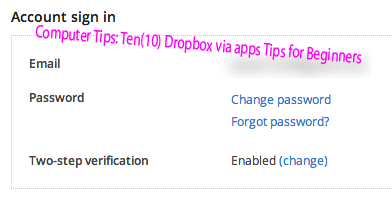
Dropbox just introduced two-step verification a few months back and it adds a layer of security that was greatly needed. If you were ever worried about someone hacking into your account by just figuring out your password, you can enable two-step verification, which will require you to type a code when logging in from the browser, desktop app or mobile app.

Computer Tips: Ten(10) Dropbox via apps Tips for Beginners

To enable it, click on your name at the top, then Settings and then click on the Security tab. Scroll down and you’ll see two-step under Account sign in.

Tip 5 -- Sync Any Folder

Dropbox is great, but a lot of people simply don’t like the fact that they have to move everything to the Dropbox folder in order to sync it. Well, there is a way around that in Windows. You can create junctions or aliases to folders in Dropbox and then they will sync without having to move the folder.


Computer Tips: Ten(10) Dropbox via apps Tips for Beginners


You can read my guide on how to sync any folder with Dropbox and other cloud storage services.

Tip 6 -- LAN Sync and Desktop Notifications

LAN Sync is a feature of the desktop app that speeds up syncing of files across your computers that are on the same LAN network. By default, Dropbox sync a file to the server and then downloads that file onto the other computers from the Dropbox server. Unless your upload and download Internet speeds are super fast, this can take a long time for large files.

Computer Tips: Ten(10) Dropbox via apps Tips for Beginners

LAN Sync is an option that will automatically allow Dropbox to find other linked computers on the same network and sync the files directly over the LAN, which is way faster than uploading and then download it again. I have 4 computers at home with Dropbox installed, so it’s convenient for me.

Desktop notifications is also nice because it will pop up a small message in your task bar whenever a file is added or deleted from Dropbox folders. This is useful if you have a shared folder with multiple users and you want to know when files are being added or deleted.

Tip 7-- Camera Upload

I love camera upload! Up until now, I had no way to backup the videos taken on my iPhone or iPad without using iTunes. iTunes is a royal pain and Dropbox saved me from having to use it anymore. Enable Camera Upload and Dropbox will automatically upload all your photos and videos to a folder called Camera Uploads. The only downside is that it stops after 10 minutes and you have to open Dropbox again, but still a great feature I use all the time.


Computer Tips: Ten(10) Dropbox via apps Tips for Beginners

Of course, be careful because I quickly realized that the amount of space I used in my Dropbox account shot up dramatically once I enabled this option! 

I was amazed at how many videos I take with my iPhone. I also installed it on my wife’s phone too and so I had to upgrade to the 100 GB plan to store all those videos and photos.

Tip 8-- View History

Another nice feature is the history viewer. Just click on Events at the left side and you can quickly see all the activity happening in your Dropbox account.

Computer Tips: Ten(10) Dropbox via apps Tips for Beginners


Tip 9-- Selective Sync

At first, I would just sync everything to all my linked devices, but quickly realized that was taking up a lot of space that was not really necessary. Instead, you can do a selective sync and only sync certain folders down to a particular computer.

Computer Tips: Ten(10) Dropbox via apps Tips for Beginners

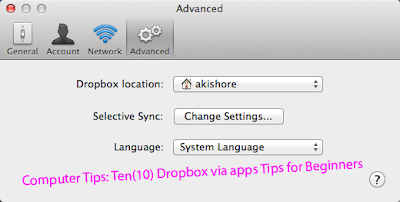
Go to Preferences and then click on Advanced. Click the Change Settings button and then just uncheck the folders you don’t want to sync.

Tip 10-- Mark as Favorite

If you want to download a file to your mobile device, then you need to mark it as a favorite. I didn’t know this and it was annoying when I needed a file from my Dropbox account while not being connected to the Internet. Just press the start icon when you are viewing a file to mark it as favorite. It will now be downloaded locally to your mobile device so you can view it anytime.


Computer Tips: Ten(10) Dropbox via apps Tips for Beginners

That’s about i! Those are 10 quick tips for using Dropbox more effectively. Got a tip of your own? Post it in the comments. Enjoy


"Computer Tips: Ten(10) Dropbox via apps Tips for Beginners"


Reference : online-tech-tips.com